
Fully automatic
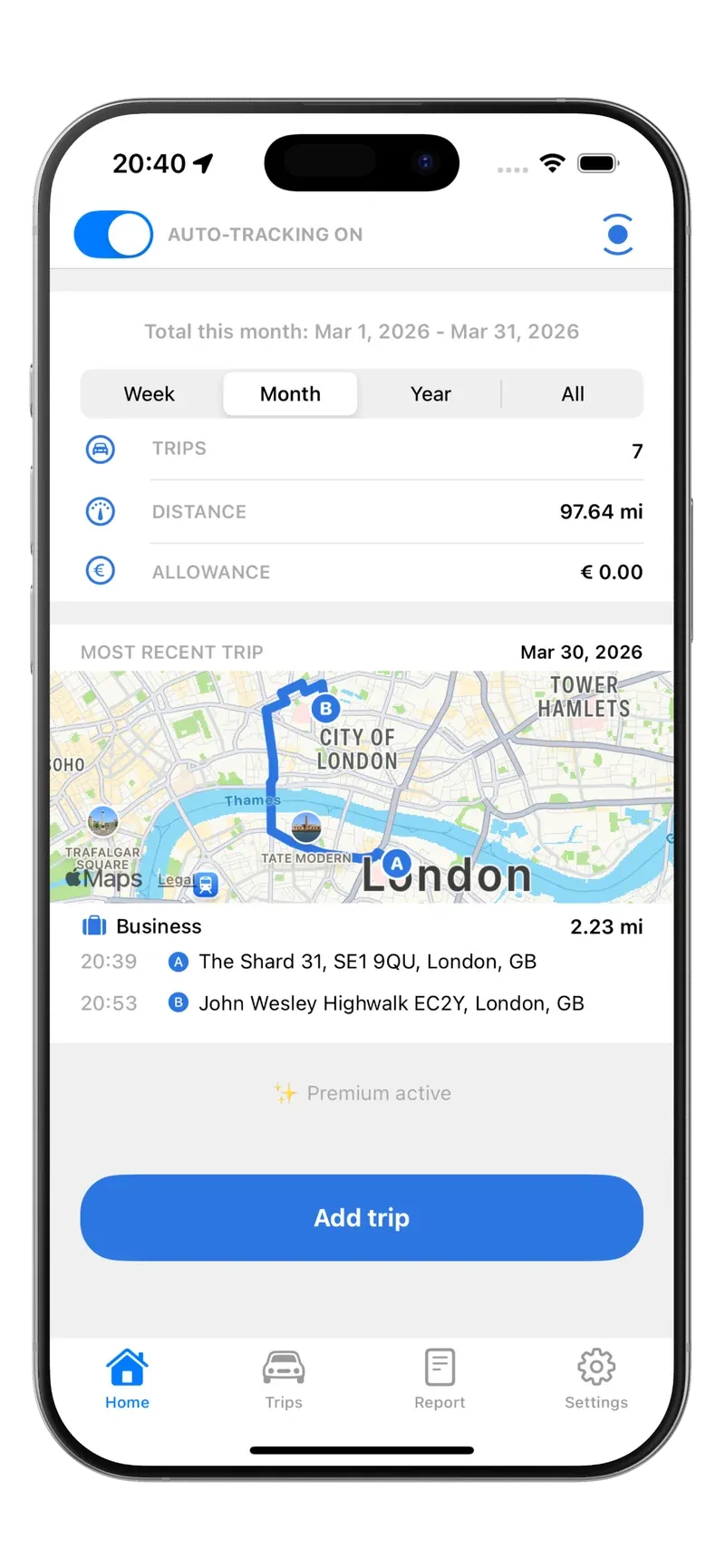
GPS and motion detection record every trip in the background.
Automatically track all your trips, easily claim mileage, and enjoy tax benefits. Start for free with no subscription.
‘Tried several apps for trip logging, but this one stands head and shoulders above the rest.’
‘Tripbook is an effective and accurate app that records your trips in a very clear and insightful way.’
‘Fantastic app for keeping track of my trips — especially very precise!’
Everything for a complete mileage log, without lifting a finger.
GPS and motion detection record every trip in the background.
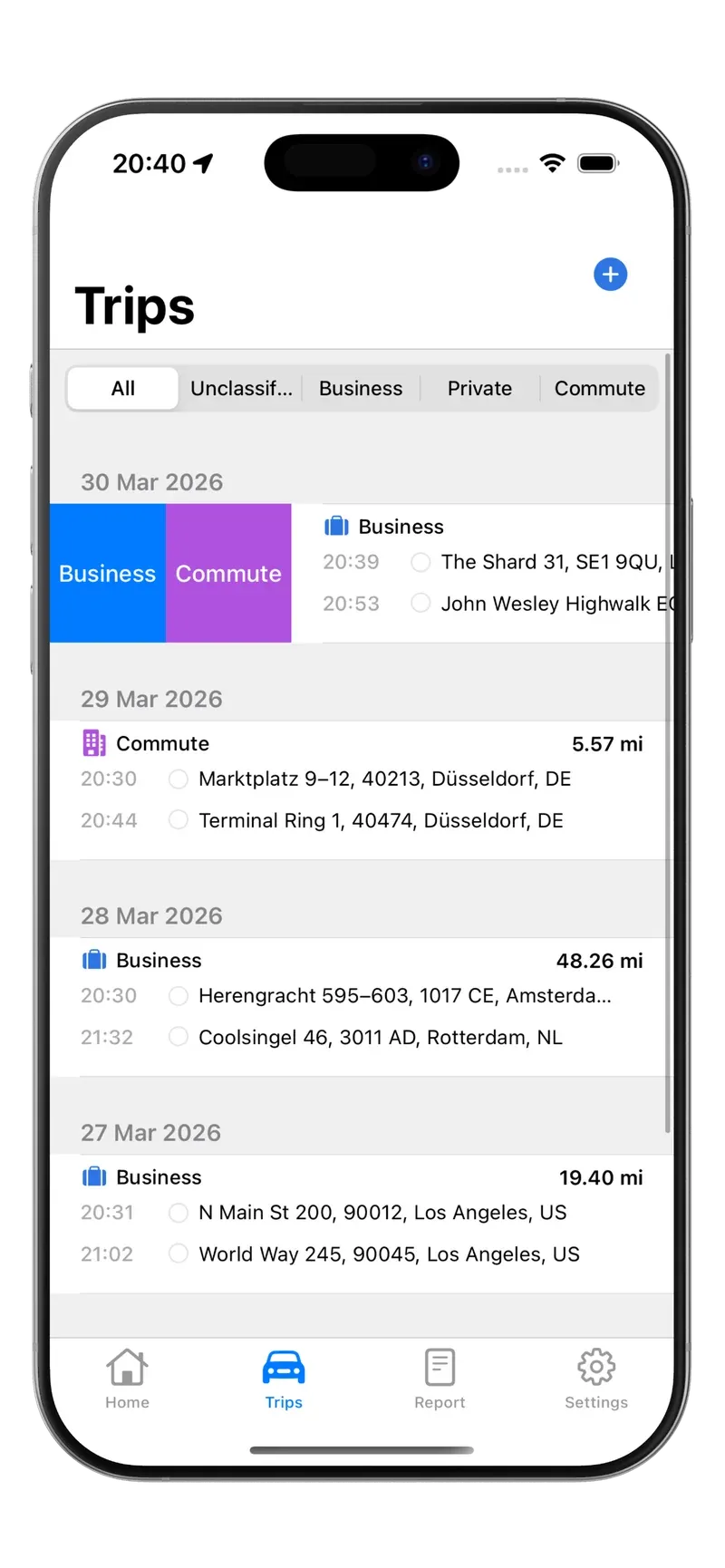
Tripbook learns from your previous trips and classifies recurring ones on its own. Swipe to handle the rest.
With addresses, distances and driving time.
Your trips.
On your own phone.
Just drive.
Free for up to 20 trips per month. Unlimited with Premium.
Your trips stay on your phone unless you turn on backup.
Tripbook is a mileage tracking app for iPhone and Android. The app uses motion detection and GPS location to automatically log trips in the background. You can also add trips manually and later edit or classify them.
Automatic tracking, Bluetooth tracking, trip classification (business/personal/commute), reports (CSV/Excel/PDF), multiple vehicles, notes, and manual trip entry. Premium adds backup and sync.
On iPhone you log in with Apple or email, on Android with Google or email.
No. Tripbook records trips in the background, so you don't need to open the app first. On iPhone, you don't need to do anything after an app update or a restart either. Recording even continues if you swipe the app away: iOS starts Tripbook again once you've driven about 200 metres, and the first stretch of the trip is filled in.
Tripbook mainly uses GPS while you drive. When you're parked, it switches to low-power motion and location detection.
Check that Auto-tracking is on and that you haven't reached the limit of 20 free trips this month. Then open Settings > App Configuration Check: every item should be green. That includes location access set to 'Always', precise location on, and Low Power Mode off. On iPhone, as a last step, turn Motion & Fitness off and on again under Settings > Apps > Tripbook. On Android, turn off battery optimisation and 'Pause app activity if unused'. Some brands, such as Xiaomi, also need Autostart. Still stuck? Email info@tripbook.io.
With Bluetooth tracking, Tripbook only records trips while your phone is connected to your car's Bluetooth. Turn it on under Settings > Tracking settings and choose your car. It replaces Auto-tracking, which helps if you often ride as a passenger.
Yes. You choose the category for each trip. Under Settings > Classification, you decide whether new trips take the category of a similar trip, are always business or personal, or stay unclassified. On iPhone, Tripbook recognises commutes once you add your home and work addresses.
Yes. You can set reimbursement rates per category (e.g. business or commute), so reports will directly show the correct amounts.
Swipe a trip to mark it business, commute, or personal, to duplicate it, or to delete it.
Yes. Open a trip and split it at the point where you stopped, for example when two trips were recorded as one. To duplicate a trip, swipe it.
Yes. Add trips manually from the main screen or the trip overview. Manual trips appear alongside your automatic trips and can be edited or classified the same way.
Add your vehicles under Settings > Vehicles, with a name and number plate. You can then choose the vehicle for each trip and filter reports by vehicle.
Tripbook doesn't read your car's odometer. You enter a reading per vehicle and date under Settings > Odometer. The app then continues per trip using the distance driven. If it no longer matches your car, add a new reading or adjust the trip's distance in the trip details.
You can export reports as CSV, Excel (.xlsx), or PDF. Select the period, categories, and vehicle, then export directly from the app.
Yes. You can turn on miles in Settings. The currency follows your phone by default, but you can also choose euro, pound, or dollar.
Yes. Turn Dark Mode on or off in Settings. On Android, Tripbook follows your system theme until you choose.
The free plan includes 20 trips per month with automatic tracking, classification, and reports. Manual trips count toward the 20. Once you reach 20, automatic recording stops until the next month unless you upgrade to Premium.
Unlimited trips, backup and sync, and the option to change a trip's date and time. You can pay monthly, yearly, or once (lifetime). You'll find current prices under Pricing above.
You manage and cancel your subscription in the App Store or Google Play. Got a new phone? Choose Restore purchase on the Premium screen, using the same Apple or Google account you bought it with.
With Premium, you turn on backup in Settings. On iPhone, your trips go to your own iCloud and sync between devices on the same Apple Account. On Android, they go to your Tripbook account and are available on any Android device where you log in.
Tripbook works on both, but your trips don't move over automatically: the iCloud and Android backups are separate. Export your reports first. Premium doesn't move over either, because Apple and Google purchases are separate.
On iPhone, your trips are stored on your phone, and with Premium you can back them up to your own iCloud. On Android, the optional Premium backup is stored in our secure cloud storage at Google Firebase, linked to your account. Read more at tripbook.io/privacy.
Go to Settings > Delete account. This can't be undone. It doesn't cancel your subscription, so cancel that first in the App Store or Google Play. You'll find more information at tripbook.io/delete-account.
Answers are AI-generated and can contain mistakes. Don't share personal details.